
Schedule WhatsApp Messages - As a business person, you must want to notify customers of due payments on the last day of their subscription or remind them of their abandoned cart on WhatsApp. You could also wish to greet new customers and subscribers through WhatsApp.
WhatsApp messaging automation can greatly benefit your business by keeping your customers hooked and boosting your sales. Luckily, with WhatsApp or WhatsApp Business, it can be done very easily within just a few steps.
Are you ready to find out how to do it? Here we go! What Is WhatsApp Message Scheduling?
How to Schedule WhatsApp Messages on Android Devices
Scheduling WhatsApp messages on your Android isn’t just a time-saver—it actually makes staying in touch way easier. Whether you’re talking to your customers, your friends, or your coworkers, it helps you stay organized and avoid those embarrassing mistakes. Plus, if you’re running a business, it gives you a real marketing boost.
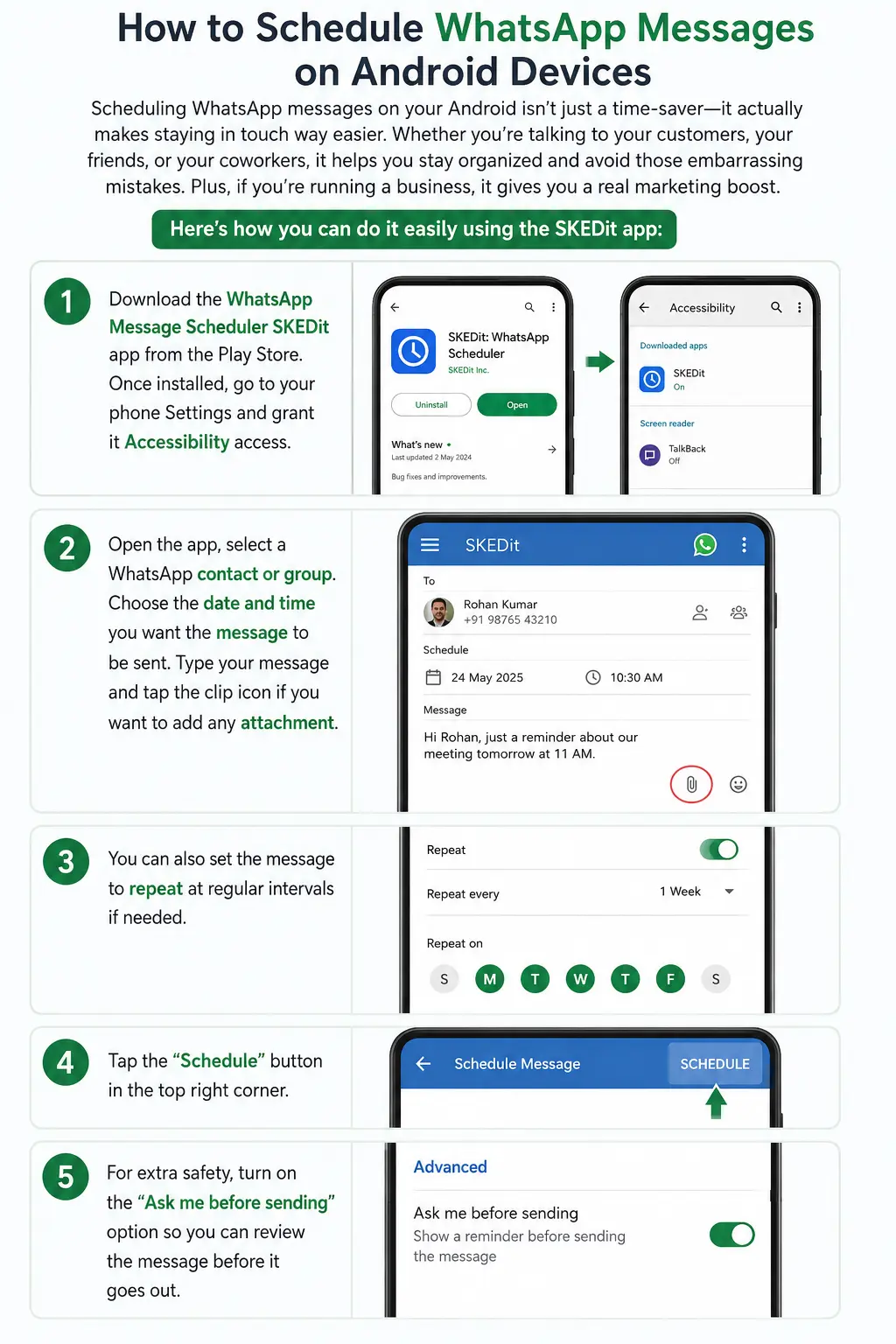
Here’s how you can do it easily using the SKEDit app:
Download the WhatsApp Message Scheduler SKEDit app from the Play Store. Once installed, go to your phone Settings and grant it Accessibility access.
Open the app, select a WhatsApp contact or group. Choose the date and time you want the message to be sent. Type your message and tap the clip icon if you want to add any attachment.
You can also set the message to repeat at regular intervals if needed.
Tap the “Schedule” button in the top right corner. For extra safety, turn on the “Ask me before sending” option so you can review the message before it goes out.
Once the message is sent, SKEDit will notify you.
Note: With SKEDit, you can only schedule one message at a time.
How to Schedule WhatsApp Messages on iPhone (iOS)
Apple devices have stringent privacy policies; thus, scheduling WhatsApp messages on an iPhone is not easy as compared to the Android devices. However, you can schedule WhatsApp messages in the iPhone through the use of the native Shortcuts application.
Below is a quick guide for scheduling your WhatsApp messages using the native iOS app:
Step 1: Install the Shortcut application from the App Store if it does not exist on your phone
Step 2: Launch the application and select Automation tab located at the bottom
Step 3: Select the Plus icon located at the top right corner and choose Create Personal Automation
Step 4: Click on Time of Day and enter the desired time and date
Step 5: Add action and type "text". Enter your message to be sent on the text field.
Step 6: Click on the Plus icon again and enter "whatsapp". Select "Send Message Through WhatsApp"
Step 7: Choose the contact you wish to send the message to and click on the next button
At the selected time, a notification pops up asking you to send the message. You only need to press the Send button.
How to Schedule Messages on WhatsApp Web
Scheduling WhatsApp messages is quick and easy by installing a browser extension called Blueticks for WhatsApp Web.
Go ahead and install the Blueticks extension from the Chrome Web Store. Afterwards, launch WhatsApp Web via Google Chrome.
Select the chat or contact whose message you would like to schedule, then click the scheduling button beside the sending icon.
The pop-up will require you to enter your message along with the date and time of when you want it to be sent.
Click Schedule Send, and the job is done!
How to Schedule Messages on WhatsApp Business App
That’s it — your away message is now active.
However, let’s be honest: this is quite limited. You cannot schedule important messages like welcome greetings for new customers or timely reminders for events and payments directly in the WhatsApp Business app.
Unluckily, the WhatsApp Business app allows the scheduling of Automatic “Away Messages” only. Here’s the procedure:
Open the WhatsApp Business app on your Android or iPhone device.
Navigate to Settings > Business Tools.
Select Away Message and then activate the switch beside “Send away message.”
Next, select the pencil icon before the message box, add your Away message, and then click OK.
Set your schedule (custom times can be selected according to your business time).
Done!
But, to be realistic here, this is not enough. You are not able to schedule messages like welcoming new customers and event reminders directly from the WhatsApp Business app.
How to Schedule WhatsApp Messages Using Talkwhy Chat
With Talkwhy Chat, scheduling WhatsApp messages turns customer communication into a breeze. You can set up reminders, fire off festive greetings, share updates, or launch your latest promotions—all without chasing people down. It keeps your customers in the loop around the clock, helps your business grow, and frees you from endless manual follow-ups.
Instead of sending messages one by one, you just automate it and save yourself hours. It’s smarter and way more efficient, day in and day out.
Step 1: Create Your Contact List
Get your customers onboarded into Talkwhy Chat by either manually uploading the numbers or importing them in large groups. Also, ensure that you segment them depending on various factors such as location, preferences, or even behaviors to enable personalized messaging.
Step 2: Write Your WhatsApp Message
This is where you write an attractive WhatsApp message that will grab your customer’s attention. There are several things that you could put in your message like text, image, video, PDFs, or even special offers.
Uses of WhatsApp messages:
Marketing campaigns
Appointment reminders
Updates regarding order delivery
Event notifications
Greetings during festivals
Follow-up with clients
Step 3: Personalize Messages for Better Results
Personalized texts tend to have far better open and response rates than non-personalized ones. The Talkwhy Chat system allows for automatic inclusion of client names, order information, booking information, or any other custom data you need to include in your text.
Examples:
"Hi John, you have an appointment tomorrow at 3 pm."
"Hi Sarah, your order has been successfully shipped!"
Step 4: Schedule and Send Automatically
With everything all set, you can just select your chosen time and day for the message to be sent. It will be automatically sent out to you at the right time without having to manually do anything yourself from your end.
Talkwhy Chat can help you plan for the following:
One-off messages
Repetitive reminders
Follow-ups
Messages based on time zone
Why Should You Schedule WhatsApp Messages?
Never Miss a Message Again
Running a business keeps you on your toes, and important messages slip through the cracks sometimes. Scheduling your WhatsApp messages takes that worry off your plate. Payment reminders, order updates—whatever needs to go out—gets sent automatically, right when it should. It’s like having a helper who’s always on time, no matter how busy things get.
Send Messages When They Matter Most
Timing is everything. If you announce a special offer or holiday greeting too early or too late, people tune out. Scheduling means you pick the exact moment your message lands, making your customers feel important—and getting you better engagement.
Reach Customers Across the Globe
If you work with people in different cities or countries, you know how tricky timing can be. Nobody likes to get messages in the middle of the night. Scheduled WhatsApp messages let you reach your clients when it suits them, wherever they are. It’s professional, and honestly, it shows you care about their time.
Craft Better, More Polished Messages
Sending messages in a rush leads to mistakes, typos, or confusing wording. Scheduling gives you breathing room to write, review, and clean up your communication. You come across polished, reliable, and professional.
Take Control of Your Workflow
Instead of scrambling all day to send updates, sit down once, plan out your week, and schedule everything in advance. You save hours, avoid constant distractions, and keep your business humming along while your WhatsApp messages basically take care of themselves.
Respond Faster to Urgent Situations
Unexpected issues pop up—stock shortages, policy changes, the sudden need for an announcement. Scheduling helps you draft clear messages and deliver them right when you need to. You stay ahead, keep customers informed, and handle things without missing a beat.
Keep Your Customers Engaged
People like consistency—weekly advice, monthly promotions, or regular reminders. Scheduled messages help you stay in touch without extra effort, build trust, and make your relationship with customers stronger every month.
Best Tips for Scheduling WhatsApp Messages Effectively
Practical Tips & Best Practices for Scheduling WhatsApp Messages
Here are some simple and effective tips to help you schedule WhatsApp messages like a pro:
Create a WhatsApp Content Calendar
Begin with planning. Develop a content calendar to map out the message you intend on sending and when you want to send it. Be sure to mark major events such as promotions, holidays, new products, or anything specific to your business. Creating a plan allows you to build a cohesive and meaningful message that will hit home for your audience and provide value through relevant and valuable content.
Schedule Messages Based on Customer Time Zones
When there are people who will receive your messages in other towns or other countries, make sure that you take into account their local time. When sending your message, do it during a suitable time because no one likes to receive messages when they are sleeping or at odd times.
Keep Your WhatsApp Messages Clear and Short
Nobody likes to read lengthy paragraphs on WhatsApp. Make sure that your texts are brief and to the point. Before scheduling your message, give it a final read and ask yourself: Is it comprehensible? Is there a way to shorten it? Don’t waste your clients’ precious time.
Personalize Messages for Higher Response Rates
Recognize each customer as an individual rather than treating them like statistics. Address them by name, recall their previous purchases, or refer to their personal preferences. Messages that have a personal touch tend to elicit a better response.
Always Verify Links and Message Details
Double-check everything before scheduling. Test all links, confirm phone numbers, offers, and important details. A broken link or wrong information can hurt your credibility and frustrate customers.
Choose a Trusted WhatsApp Scheduling Tool
Since WhatsApp doesn’t have a built-in scheduler, pick a reliable and secure third-party tool. Do proper research, read reviews, and choose one that fits your business needs. A good tool makes scheduling smooth and hassle-free.
Monitor and Optimize Scheduled Campaigns
Regularly review your scheduled messages. Set some time each week or month to check what’s performing well and what needs improvement. Update or replace messages based on new offers, changes, or market trends to keep your communication fresh and effective.
Collect Customer Feedback for Better Engagement
Encourage customers to reply and share their thoughts. Ask them if the messages were helpful or what kind of content they want more of. Their feedback is valuable and helps you improve future campaigns.
Avoid Spam and Follow WhatsApp Policies
Don’t overdo it. Sending too many messages can annoy customers and lead to blocks or muted chats. Maintain a good balance, respect WhatsApp’s rules, and focus on quality over quantity.
Conclusion
As a business owner, mastering how to schedule WhatsApp messages can truly be a game-changer for your business. It helps you stay on top of customer communication, send timely reminders, and never miss important moments — even when you’re busy or unavailable.
By using scheduling smartly, you can boost efficiency, maintain consistency, and build stronger relationships with your customers. It’s one of the simplest ways to appear professional and reliable without adding extra stress to your day.
So go ahead and start scheduling your WhatsApp messages. The right message at the right time can make all the difference!
WhatsApp Scheduler: Frequently Asked Questions
What Is a WhatsApp Message Scheduler?
WhatsApp Message Scheduler is an app that enables users to draft messages in advance and schedule their automatic delivery in the future. It provides an opportunity for people to schedule their communication intelligently without sending messages in real-time.
Can You Schedule Messages Directly on WhatsApp?
No. As of now, WhatsApp does not have a built-in feature to schedule messages. You need to use third-party apps on Android, the Shortcuts app on iPhone, or browser extensions on WhatsApp Web.
Is It Safe to Use Third-Party WhatsApp Scheduling Apps?
It depends on the app. Many are reliable, but it’s important to choose carefully. Always read reviews, check the permissions the app requests, and avoid tools that look suspicious or ask for unnecessary access to your data.
How Does a WhatsApp Scheduler Work?
It is quite easy. All you need to do is select the contact or group, write the message, set the time and date for sending, and then schedule it. It will be automatically sent out by the application when the scheduled time comes.
Can I Schedule Messages for WhatsApp Groups?
Yes. Most scheduling tools allow you to schedule messages for both individual chats and group chats. You just need to select the group instead of a single contact while setting it up.
What Happens if My Internet Is Off During Scheduled Delivery?
Most tools require an active internet connection at the scheduled time. If your internet is off, the message usually stays pending and gets sent automatically once you’re back online.
Can I Edit or Delete Scheduled WhatsApp Messages?
Yes. As long as the message hasn’t been sent yet, you can easily edit or delete it through the scheduling app or tool you’re using.
Can Recipients See That a WhatsApp Message Was Scheduled?
No. The recipient receives the message normally. They won’t know it was scheduled in advance.
Can I Schedule Recurring WhatsApp Messages?
Yes, some good third-party tools allow recurring messages. You can set messages to repeat daily, weekly, or monthly. Just check if your chosen tool supports this feature.
Will Scheduled Messages Sent if My Phone Is Switched Off?
Usually not. Your phone needs to be powered on and connected to the internet for the message to be sent. If your phone is off at the scheduled time, the message will be sent once the phone is turned back on and online.
Learn More:


